![mAIscribe - main logo - hi-res (4000 x 1000 px).png]](https://help.maiscribe.com.au/hs-fs/hubfs/mAIscribe%20-%20main%20logo%20-%20hi-res%20(4000%20x%201000%20px).png?width=200&height=50&name=mAIscribe%20-%20main%20logo%20-%20hi-res%20(4000%20x%201000%20px).png)
The "History" page temporarily stores your recordings and documents, giving you quick access to recently generated notes.
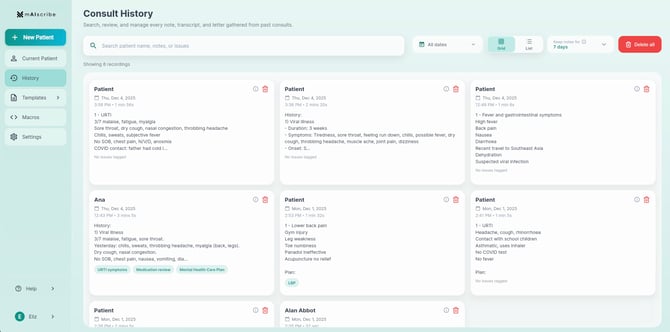
What You'll Find in History:
- Ability to Search: You can search based on patient name, content of the consultation, tags or date of
- Display option: Displays consults/recordings in a list or grid
- Keeping notes or deleting: From here you can decide how long you'd like to keep your notes stored. You can also delete all records.
Note: By default, recordings are stored for 24h and documents are stored for 7 days before being deleted. You can only control how long notes are kept, not the audio recording.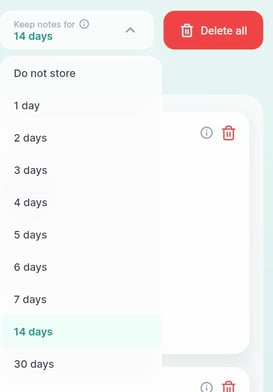
- Edit note: Simply click on the card or item on the list and to re-load this patient record in the main area. From here you can edit notes and generate new documents.
- Delete single note: Click the delete button.
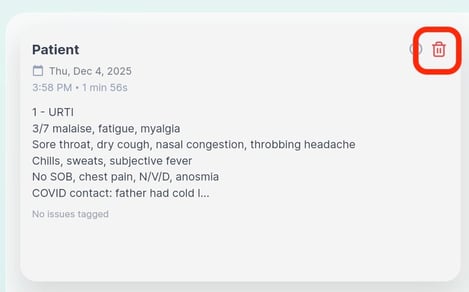
If you have added your patients name to the consultation, it will show here. This is recommended as it will help you find your recordings faster.
If you are using Maia to sync EMR information, make sure you clear your consultation (click "Next Patient") before loading a past recording.
This way you'll avoid the past recording interacting with the current patient data loaded on the screen and creating mismatched notes.