---
title: Template Customisation with AI
description: Video and step by step guide on how to use Customise with Ai features in mAIscribe
---
[Skip to content](https://help.maiscribe.com.au/template-customisation-with-ai#main-content)
![mAIscribe - main logo - hi-res (4000 x 1000 px).png\]](https://help.maiscribe.com.au/hs-fs/hubfs/mAIscribe%20-%20main%20logo%20-%20hi-res%20(4000%20x%201000%20px).png?width=200&height=50&name=mAIscribe%20-%20main%20logo%20-%20hi-res%20(4000%20x%201000%20px).png)
Open main navigation
Close main navigation
Hi there :) How can we help you?
- There are no suggestions because the search field is empty.
1. [mAIscribe Knowledge Base](https://help.maiscribe.com.au/?hsLang=en)
2. [General](https://help.maiscribe.com.au/general?hsLang=en)
# Template Customisation with AI
## Leveraging "Customise with AI" to build, refine, and troubleshoot your clinical documentation.
The new AI Customisation in mAIscribe allows you to move beyond generic SOAP notes.
By using the AI Agent, you can create dynamic templates that helps structure documentation for complex clinical scenarios like **MBS-compliant health assessments** or **specific specialist referral formats**.
See below what you have available:
### 3 Ways to Create and Customise Your Templates
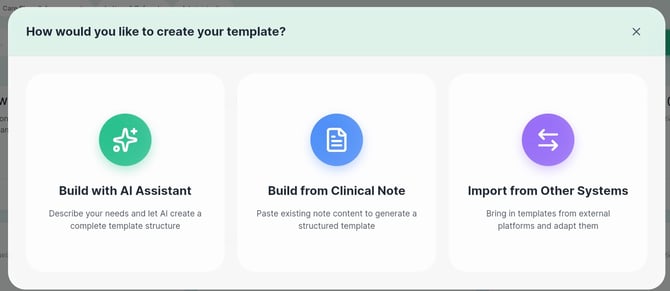
#### **1. Build with AI Assistant**
This method allows you to generate a complete template structure from scratch by simply describing your requirements in plain English.
Ideal for:
Creating complex clinical documents, such as a "Type 2 Diabetes Risk Evaluation," where you can paste specific requirements (like MBS compliance rules) directly into the prompt box for the AI to incorporate.
#### **2. Build from Clinical Note**
If you have an existing note, care plan, or letter that already reflects your preferred style, this is the most efficient option. Use real examples - we take care of the de-identification.
Ideal for:
Doctors who are not as familiar with prompting the AI or already have a good real-world example and want the AI to learn their specific "voice" or formatting habits.
#### **3. Import from Other Systems**
This feature is specifically built for GPs transitioning to mAIscribe from a different AI scribe or clinical tool.
Ideal for:
You to bring over established templates you have spent time refining elsewhere so you don't have to start from zero.
\-------------------------
### **Step-by-Step: Build with AI Assistant**
**Watch the video below for a full tutorial or follow the step-by-step below:**
**1. Select "Build with AI Assistant":** Found under the **+ Add New Template** button in your Library or via Template \> Customise in the left menu.
**2. Be specific on what you need:** Build a prompt that has details of what type of consultation this will be used in, key sections needed, any special requirements and if it needs to meet any specific MBS rules.
Tip: You can copy and paste the requirements from the Medicare website for that item to guide the structure and requirements of the template
*Example Instruction:* "A template for Health Assessment, for patients over 75 years old, compliant with MBS rules for item 701, 703, 705 and 707, reviewing medical, physical, psychological, and social factors like mobility, memory, medications, nutrition, and social support, resulting in a personalised care plan" + Paste Medicare Item rules.
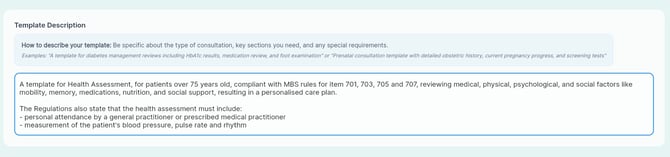
**3. Generate Template:** Once happy with the prompt added, click to "Generate Template". A modal will appear as it processes the request and then you'll see the AI at work and the steps to complete your request.
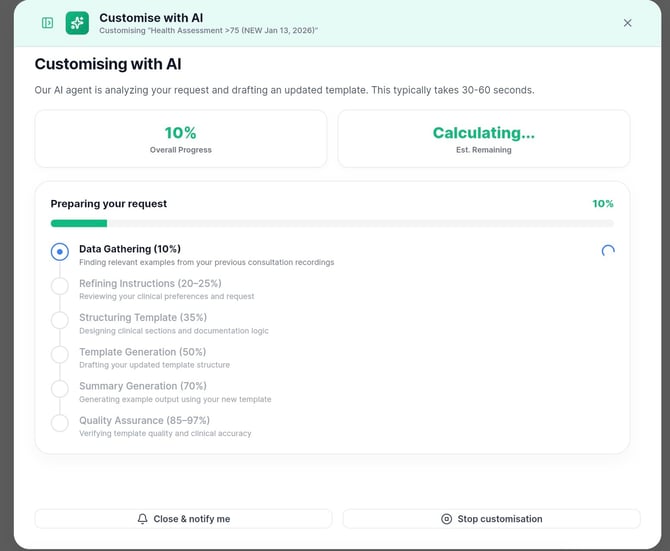
Tip: You can wait for it to finish processing (normally ~1 min) or you can click "Close and notify me" and the AI will let you know once it's time to review it.
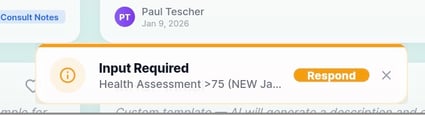
**4. Reviewing and fine tuning:** Depending of the complexity of our request, the AI might require you to review what it created and add extra guidelines. Simply click the notification to check.
It will list "Points to Clarify" and also AI Recommendations to improve the template.
You can choose to accept the recommendations or not - and add in "Your Preferences" the response to what the AI needs to improve and finalise the template.
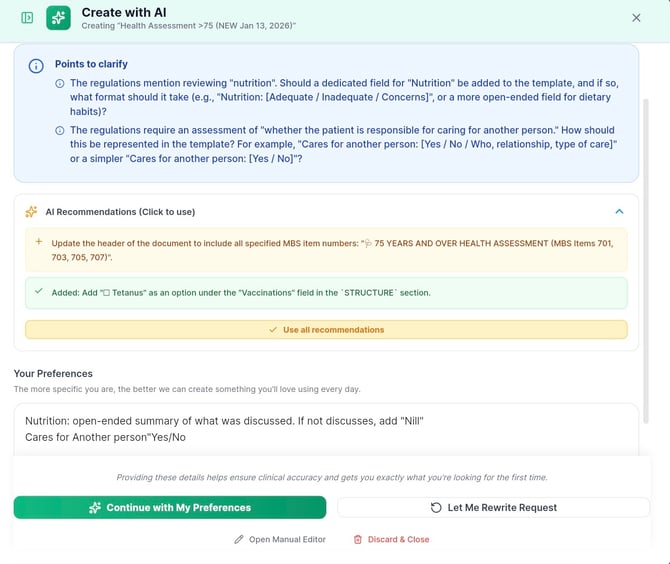
You can also choose to refine the initial prompt by clicking "Let me Rewrite Request" - it will open the prompt field again.
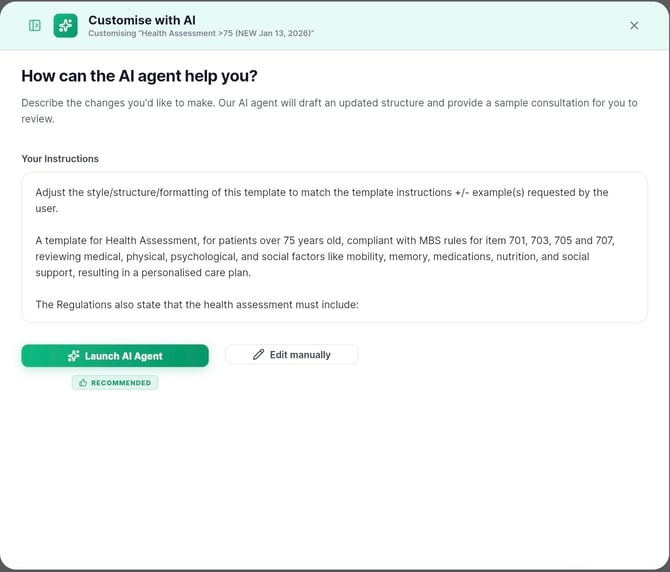
As a final option, you can decide to "Edit Manually". This is recommended if you are more familiar with Template Structures and advanced AI Prompts. [Learn more about it here.](https://help.maiscribe.com.au/how-to-edit-existing-templates-in-the-template-library?hsLang=en)
**5. Apply and Accept:** Once you have reviewed the necessary changes, you'll get a final version of the template. The AI will give you also Quality Insights that helps you review whether the template is ready to be used.
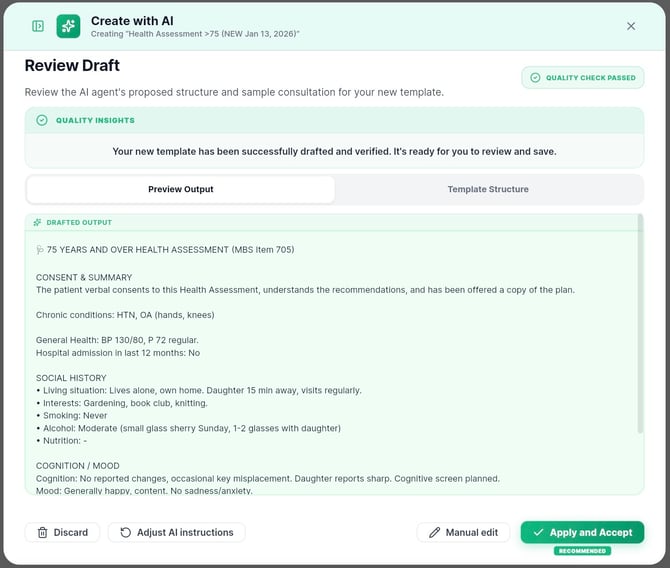
If you are happy with the output, simply click "Apply and Accept". The template will be now available for you to use in your consults!
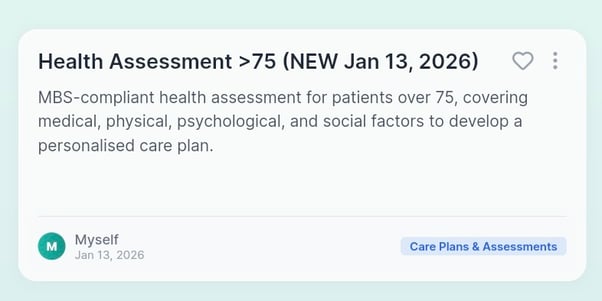
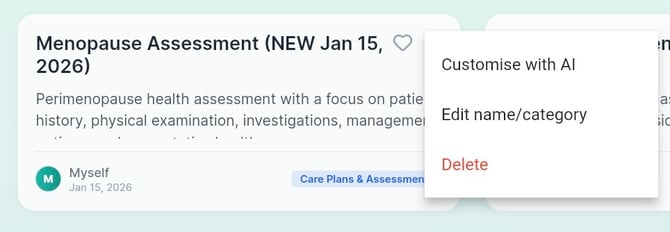
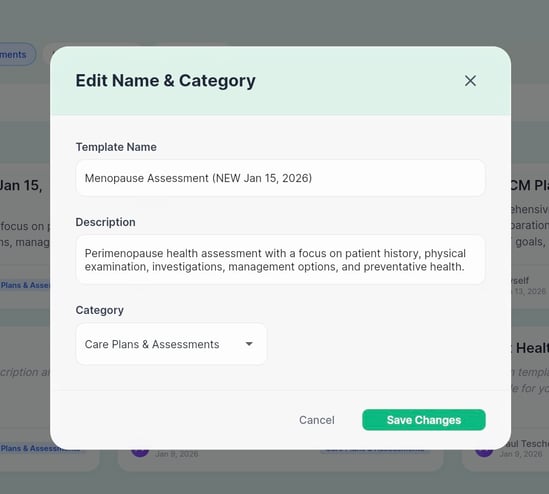
Name, Description and Category are automatically assigned by AI.
You can Edit those by clicking the three dots at the right corner of your template:
\-------------------------
### **Build from Clinical Note or Import from Other Systems**
These are the easiest ways to create a new template in your account - you already have the template or the note how you like it, and you will simply bring it to mAIscribe.
#### **For Build From Clinical Note**
**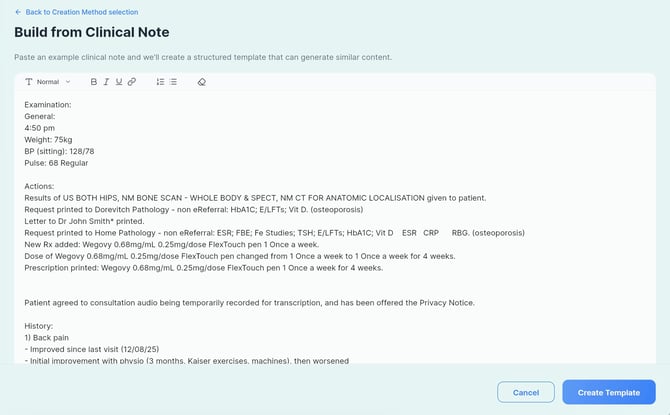**
Simply copy and paste your real notes example - exactly how you'd normally write it - and the AI will craft a template using that as base.
You'll follow the same steps as the process above to Review and Accept the template.
#### **For Import from Other Systems**
We know there are a lot of Scribes out there and you might have tried a few before finding mAIscribe. This option is to make sure you don't have to part ways with a template you might have enjoyed using.
Go to the previous system, copy the structure of the Template and paste it in the text box.
Then select from which System you are copying it from.
In case you only have the final note, use the Build from Clinical Note option to import it.
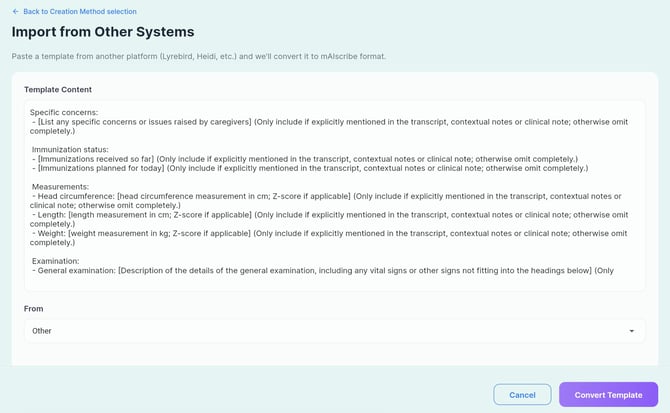
Again you'll follow the same steps as the process of Build with AI to Review and Accept the template.
- [FAQs](https://help.maiscribe.com.au/faqs?hsLang=en)
- [Getting started](https://help.maiscribe.com.au/getting-started?hsLang=en)
- [Troubleshooting](https://help.maiscribe.com.au/troubleshooting?hsLang=en)
- [General](https://help.maiscribe.com.au/general?hsLang=en)
- [Privacy & Security](https://help.maiscribe.com.au/privacy-security?hsLang=en)
- [Pricing & Plans](https://help.maiscribe.com.au/pricing-plans?hsLang=en)
💪Need further support? Email **support@maiscribe.com.au**
Copyright © 2025, mAIscribe
```json
{
"@context" : "https://schema.org",
"@type" : "VideoObject",
"contentUrl" : "https://40175429.fs1.hubspotusercontent-ap1.net/hubfs/40175429/Customise-all3.mp4",
"dateModified" : "2026-01-15T05:32:07.979Z",
"duration" : "PT2M",
"height" : 900,
"name" : "Customise with AI- new mAIscribe feature",
"thumbnailUrl" : "https://40175429.fs1.hubspotusercontent-ap1.net/hubfs/40175429/Customise-all3.mp4/medium.jpg",
"uploadDate" : "2026-01-15T05:25:09.654Z",
"width" : 1706
}
```
```json
{
"@context" : "https://schema.org",
"@type" : "VideoObject",
"contentUrl" : "https://40175429.fs1.hubspotusercontent-ap1.net/hubfs/40175429/customisewithai.mp4",
"dateModified" : "2026-01-14T01:19:32.387Z",
"duration" : "PT7M8S",
"height" : 880,
"name" : "customisewithai",
"thumbnailUrl" : "https://40175429.fs1.hubspotusercontent-ap1.net/hubfs/40175429/customisewithai.mp4/medium.jpg",
"uploadDate" : "2026-01-14T01:19:21.123Z",
"width" : 1726
}
```