![mAIscribe - main logo - hi-res (4000 x 1000 px).png]](https://help.maiscribe.com.au/hs-fs/hubfs/mAIscribe%20-%20main%20logo%20-%20hi-res%20(4000%20x%201000%20px).png?width=200&height=50&name=mAIscribe%20-%20main%20logo%20-%20hi-res%20(4000%20x%201000%20px).png)
The Template Library is where you can view, edit, and create all the note and document templates available in mAIscribe. It’s designed to give you full control over how your notes are structured, while making it easy to reuse and refine templates over time.
You can access the Template Library at any time from the main menu:
Templates → Library
What you’ll find in the Template Library
The Template Library contains:
-
All standard mAIscribe templates
-
Any custom templates mAIscribe has created specifically for you
-
Templates you’ve edited or created yourself
Templates are organised to make them easy to browse and reuse.
Template views
At the top of the Library, you’ll see three main views:
-
All
Shows every template available in your account. -
My Templates
Templates you’ve created yourself or saved as edited copies. -
Favourites
Templates you’ve marked as favourites for quick access.
Filtering by template category
You can also filter templates by category, matching the document types available throughout mAIscribe:
-
Consult Notes
-
Care Plans & Assessments
-
Letters & Referrals
-
Administrative
If you’d like a deeper explanation of each document type, you can read more here.
Preview your Templates
Hover over the template and click "Preview".
If the template is a custom template created by mAIscribe for you, the first time you open it the system will automatically generate:
-
A template description
-
An example document
This can take around 10 seconds to load the first time.
Editing a template using Customise with AI
For an in depth look of HOW to edit your templates, check this article.
To edit a template, simply hover on it in the Template Library and click "Customise".
What you can edit via the Manual Edit
When editing a template, you can change:
-
Template name
-
Description
-
Category it appears under
-
Whether it’s marked as a favourite
You can also edit the structure of the template by:
-
Adding new headers
-
Adding or adjusting sections
-
Reordering content as needed
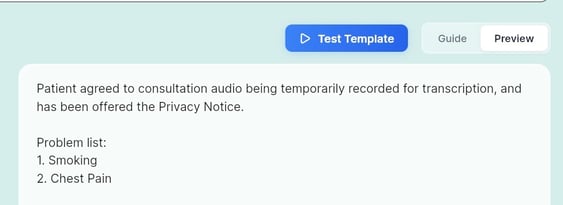
At any point, you can use the Test Template button to preview how the structure will look. The result will appear in the Preview box.
Saving your changes
Once you’re happy with your template, you have two options:
-
Save as New Template
Use this if you want to keep the original template unchanged, or if you’re editing a standard mAIscribe template. -
Update Template
Available for templates you own (your custom templates).
Important:
Standard mAIscribe templates can’t be overwritten. However, you can always use them as a base and save your own customised version as a new template.